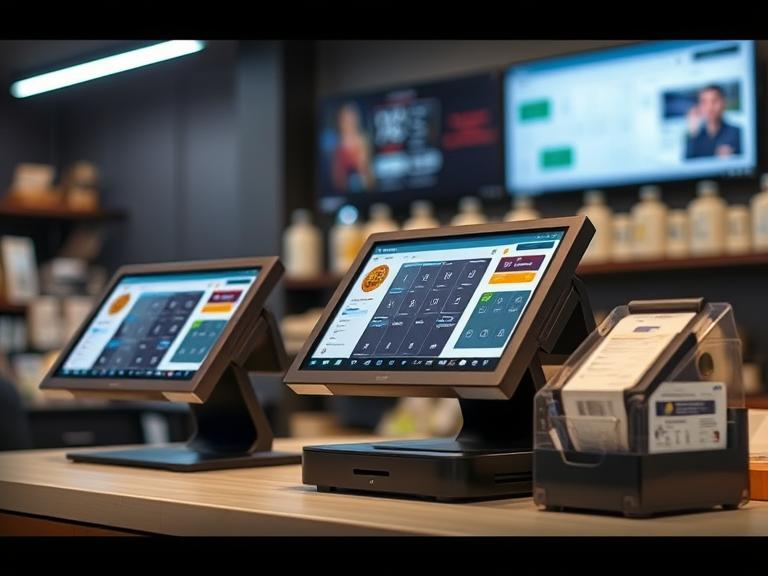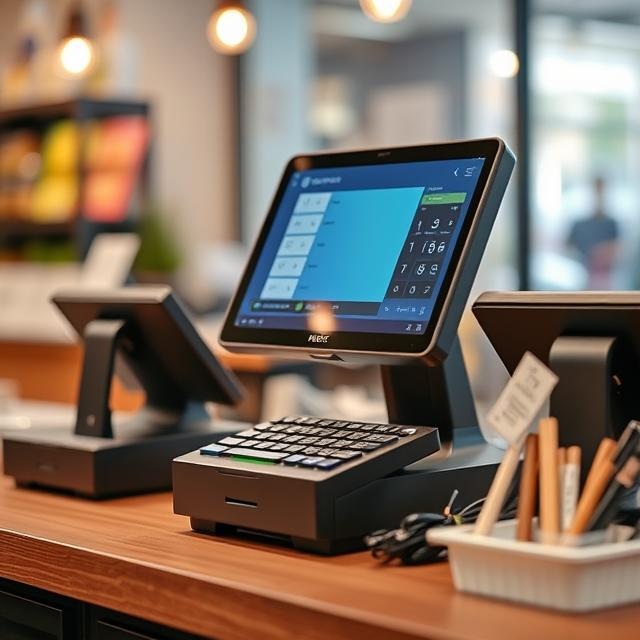
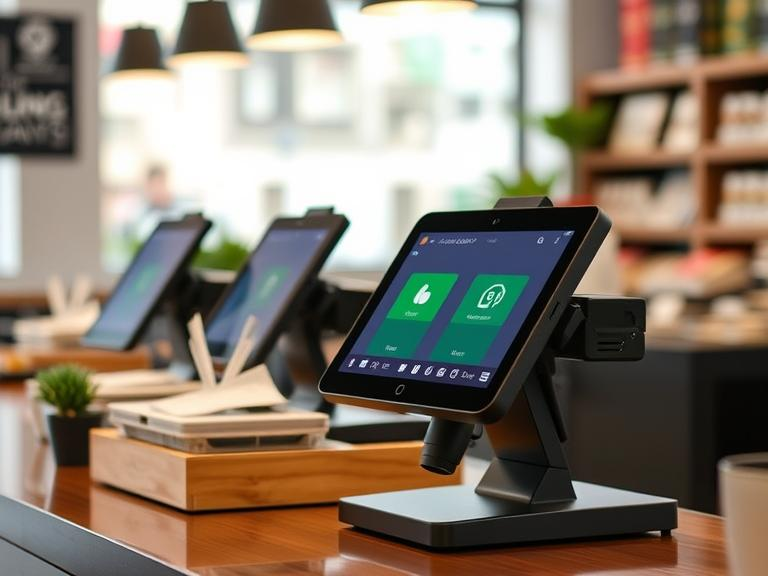
Most businesses these days use a POS system. It’s the tool that helps ring up sales, track products, and print receipts. But if your POS is working alone, you’re probably doing more work than you need to.
Let’s talk straight. You don’t have time to jump between screens, fix data mistakes, or guess what’s going on with your stock or sales. What if your POS could talk to your other systems—like the one you use for inventory or your online store? That’s what we’re getting into today.
This guide breaks it all down—no tech lingo, no confusion. Just clear steps and real benefits.
What Does It Mean to Connect Your POS?
When someone says “connect your POS,” they’re talking about letting your POS system work together with other tools you already use.
Think about it like this:
- Your POS handles the sales.
- Your inventory system tracks what’s in stock.
- Your accounting software counts your money.
- Your CRM remembers your customers.
- Your online store shows what’s available to buy.
If these systems talk to each other, you stop wasting time typing the same info in different places.
Why Should You Connect Your POS to Other Systems?
Let’s say you sell a t-shirt in your store. Your POS knows about the sale—but does your website? Does your inventory count go down? Is the income logged in your books?
When your POS is connected to the rest, all of that happens in real-time. No extra work. No “Oops, we’re out of stock” messages online. No more guessing.
Here’s why it matters:
- No double entry: Enter info once, and it shows up everywhere.
- Less chance for mistakes: No more wrong numbers or missing items.
- Faster decisions: You see what’s selling and what’s not—right away.
- Better service: You know your customer’s last order without asking them again.
- Less stress: You’re not stuck fixing things every day.
This isn’t just about saving time. It’s about making your day-to-day a whole lot easier.
What Kinds of Systems Can You Connect to Your POS?
Your POS can link up with a bunch of tools. Each one plays a part in running your business. Let’s go through the big ones:
1. Inventory Systems
These help you keep track of what you have, what you need to order, and what’s almost gone. Once connected, your POS will update your stock numbers after every sale. That means no surprises when a customer asks for something you ran out of.
2. CRM (Customer Relationship Management)
CRMs remember your customers. They track who bought what, when, and how often. When your POS talks to your CRM, it can help send special offers, birthdays discounts, and loyalty rewards without you lifting a finger.
3. Accounting Software
Selling things means money changes hands. Accounting software like QuickBooks or Xero keeps that straight. If your POS feeds the numbers straight into it, you won’t have to type out every sale by hand.
4. Online Stores
Selling in-person and online? You need both sides to stay in sync. Your website should show the same stock as your physical shop. Connecting your POS to platforms like Shopify or WooCommerce helps with that.
5. ERP Systems
Larger businesses may use full business management systems (ERP). These tools tie everything together—sales, inventory, accounting, HR. POS integration keeps that central brain updated with each transaction.
6. Payment and Loyalty Tools
Some tools handle rewards or gift cards. Others help with payment methods. POS systems can link with these so you’re not switching apps mid-sale.
How Does POS Integration Actually Work?
Let’s skip the buzzwords and keep it real.
When you “connect” your POS, it simply means that two tools can share info with each other.
There are three main ways this happens:
A. Built-In Connections
Some POS systems already come with connections to popular tools. For example, your POS might already know how to send sales to QuickBooks.
These are the easiest to use. No coding. Just click and connect.
B. Third-Party Tools
Tools like Zapier or Integrately act like messengers. They pass info between systems even if the systems don’t speak the same language.
Think of them like translators.
C. Custom Coding
If you have a unique setup or older software, you might need a developer to write some code so the systems can talk.
It costs more and takes time, but sometimes it’s the only way to make everything work smoothly.
How Can You Tell If Your POS Is Ready to Connect?
Before you do anything, check if your POS system can connect with others. Some older ones can’t. Here’s how to check:
1. Look for Integration Options in the Settings
If your POS system lets you connect to tools like QuickBooks, Mailchimp, or Shopify, you’ll usually find those options in your settings menu.
2. Ask the Provider
Don’t be afraid to call or message your POS company and ask them directly:
- Can I connect this to my inventory system?
- Do you support accounting software?
- Is there a list of apps you work with?
3. Read the Documentation
Most POS companies have help guides or videos. See what’s possible before you buy anything new.
4. Check for “Open API”
This is a tech term, but it just means your POS is flexible. If it has this, other tools can usually connect to it—even if there’s no official partnership.
Step-by-Step: How to Connect Your POS with Your Other Systems
Now let’s get into the part you care about. How do you actually do this?
Step 1: Make a List of What You Use
Write down every system or tool you use. POS, inventory tracker, website, customer database, etc.
Step 2: See What Already Connects
Check if any of these systems already work with your POS. Visit each website or call their support teams.
Step 3: Choose Your Integration Method
- If it’s built-in, great! Follow the steps they provide.
- If not, check if third-party tools can help.
- If that doesn’t work, consider hiring a developer.
Step 4: Test Everything
Once you set it up, try it out. Ring up a sale. Check if it shows in your accounting software. See if your stock updates correctly.
Step 5: Train Your Team
Make sure your staff knows what’s changed. Show them what to click and where to look. Clear instructions can stop mistakes before they happen.
What Problems Might You Face?
Let’s be honest. Connecting systems isn’t always smooth. Some things can go wrong. Here’s what to watch for:
- Data Doesn’t Match: Sales show in one place but not the other? Something’s broken. You’ll need to check settings or reconnect.
- Old Software: Some tools are just too outdated to talk to anything else. Upgrading might be the only option.
- Hidden Fees: Some platforms charge extra for integrations. Always check the pricing first.
- Poor Support: If your POS company doesn’t help when something breaks, you’re on your own.
Knowing these upfront can save you from headaches later.
What Are the Benefits of a Fully Connected POS?
Once your systems start working together, you’ll feel the difference every day.
Here’s what happens:
- Inventory Counts Stay Right: You won’t oversell something that’s out of stock.
- Less Work for You: No need to copy and paste numbers into reports.
- Faster Customer Help: Staff can see purchase history right at checkout.
- Better Decisions: Real-time reports help you buy smarter and sell smarter.
- Room to Grow: Adding new stores, channels, or staff is easier when everything is already linked.
It’s not about fancy features. It’s about making your work life easier.
Real-Life Examples: How Integration Helped Others
Example 1: The Busy Café
A small café used a POS that didn’t connect to anything. The owner had to type sales into QuickBooks every night.
They switched to a POS that sent sales straight to their accounting tool. In one month, they saved over 10 hours of work—and fewer mistakes meant fewer fines during tax season.
Example 2: The Clothing Store with a Website
A clothing shop had two separate systems—one for the store, one for their website. When something sold online, they had to manually adjust stock in the store’s system.
Once they linked both tools, their stock stayed up to date everywhere. No more refunds for sold-out items.
Example 3: The Local Bookstore
They used a simple POS but wanted to track loyal customers and send thank-you emails. After connecting their POS with a CRM, they started sending automatic coupons to repeat buyers. Sales went up 15% in just two months.
Best POS Systems That Work Well With Other Tools
Here are a few POS platforms known for good connections:
- Square: Easy to use and connects with lots of tools like QuickBooks, Mailchimp, and inventory apps.
- Shopify POS: Perfect if you also sell online using Shopify.
- Lightspeed: Strong for retail and restaurants with many built-in connections.
- Toast: Great for restaurants, connects with kitchen systems, delivery apps, and more.
Always check if the tools you use are supported before choosing a system.
FAQs (People Also Ask)
1. What systems can I connect to my POS?
Inventory, accounting, CRM, website, and loyalty programs are the most common.
2. Is it hard to connect a POS to other tools?
Sometimes it’s a few clicks. Other times, you may need help from a tech person. It depends on the tools you’re using.
3. Is it safe to connect my POS to other software?
Yes, as long as you use trusted platforms. Always use secure logins and update passwords.
4. How much does it cost to connect everything?
Built-in options are often free. Some third-party tools charge a monthly fee. Custom work from a developer can cost more.
5. Do I need a new POS to make this work?
Not always. But if your POS is very old, it might be time for a change.
Final Thoughts + Action Step
Running a business is already a lot of work. Your tools should help you—not slow you down.
If your POS system is still working alone, it’s time to fix that. Start small. Connect it to your accounting software or inventory tool first. Then build from there.
Want help choosing a POS that works with your current tools? Drop a comment or message us—we’ll guide you in the right direction.
Your time matters. Let your systems do the heavy lifting so you don’t have to.