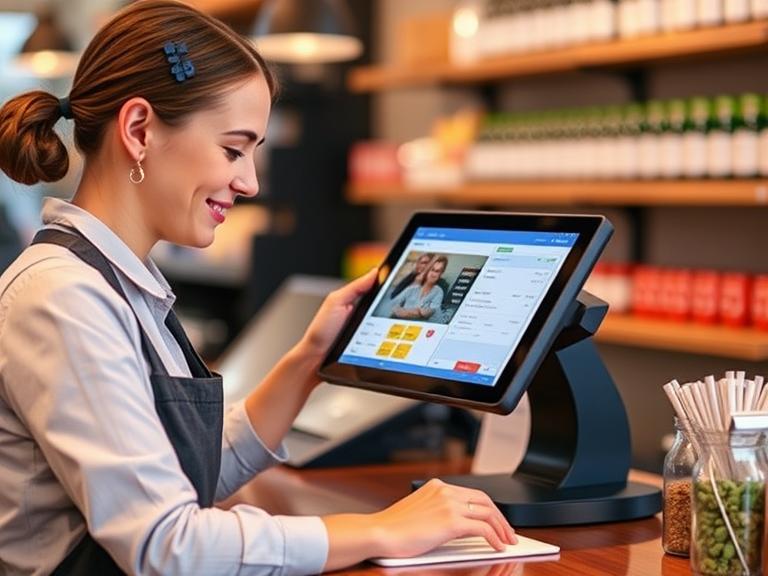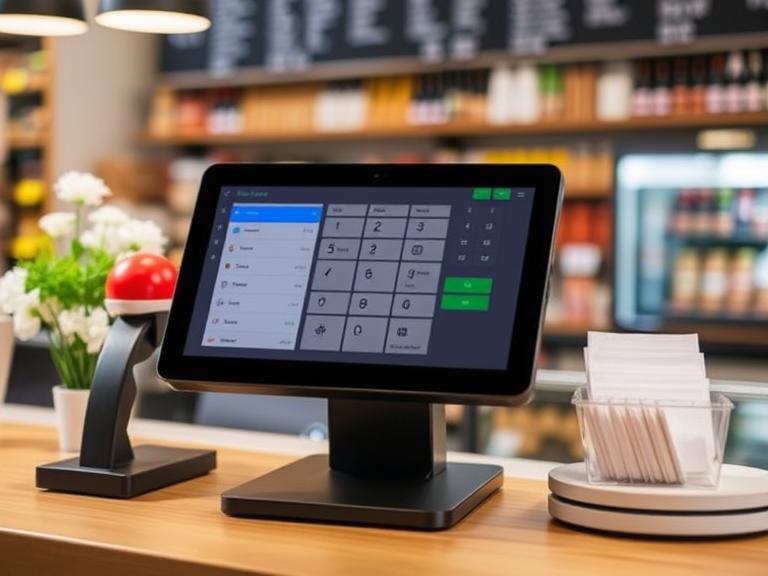

Imagine running a store where customers can’t pay because your checkout system crashes. Scary, right? That’s what happens when a point-of-sale (POS) system goes down during a switch to a new one. But you can avoid this mess! Moving to a new POS system without downtime keeps your business running smoothly, saves money, and keeps customers happy. This guide walks you through every step to make the switch easy and trouble-free. Let’s get started!
Understanding POS System Migration
What is a POS System Migration?
A POS system is the tool your business uses to process payments, track sales, and manage inventory. Migrating means switching from your old POS to a new one. This involves moving data (like customer info and sales records), setting up new hardware (like card readers), and installing new software. Why do businesses make this change? Maybe the old system is slow, lacks modern features like online ordering, or can’t handle growth. A new POS can make your store faster and more efficient.
Why Avoiding Downtime Matters
Downtime means your POS stops working, halting sales. For a retail store, even an hour of downtime can cost hundreds of dollars. Restaurants might lose reservations, and customers could leave frustrated. Employees can’t process orders, causing chaos. Studies show retail businesses lose 1–2% of daily revenue per hour of system failure. Keeping your POS running during migration is critical to avoid these problems.
Common Reasons for Downtime During Migration
Switching systems can go wrong if you’re not careful. Data might get lost, like inventory records disappearing. New hardware might not work with the software. Poor planning can leave you unprepared for issues, like payment systems not connecting. Knowing these risks helps you plan better.
Planning Your POS Migration
Assessing Your Current POS System
Start by checking your current setup. Look at your hardware (terminals, scanners, printers) and software. What data does it store? Sales history? Customer details? List all apps connected to it, like accounting tools or payment processors. This audit shows what needs to move to the new system. Ask: Does everything work well, or is something outdated?
Choosing the Right New POS System
Picking a new POS is a big deal. You can choose a cloud-based POS, which stores data online for easy access, or an on-premise one, which runs on your computers. Cloud systems are popular because you can check sales from anywhere and update them easily. Look for features like real-time sales tracking, mobile apps, or links to your online store. Make sure the system works with your existing tools, like your credit card processor. A system that fits your business grows with you.
Building a Migration Roadmap
Plan your switch like a treasure map. Create a timeline with steps, like “back up data by Monday” or “test new system by Friday.” Decide who’s in charge of each task—maybe your IT person handles setup, and your manager trains staff. If you’re working with a POS vendor, include their tasks, like installing software. A clear plan keeps everyone on track.
Engaging Stakeholders
Get everyone involved. Talk to your IT team, cashiers, and accountants. Explain why the new POS will make work easier. Listen to their concerns—maybe cashiers worry about learning a new system. Clear communication builds trust and makes the switch smoother.
Steps to Migrate to a New POS System Without Downtime
Step 1: Data Backup and Validation
Your data is like your business’s memory—customer names, sales, and stock levels. Before switching, save everything to at least two safe places, like an external drive and a cloud service. Check that the data is correct. Are all 500 customer records there? Did inventory numbers transfer accurately? This prevents losing critical information.
Step 2: Setting Up the New POS System
Now, set up the new system. Install hardware like touchscreens or receipt printers. Load the software and connect it to tools like your payment processor or inventory app. Test every connection. Can you process a Visa card? Does the inventory update when you sell an item? Fix any issues before moving forward.
Step 3: Parallel Testing
Run both the old and new POS systems side by side in a test environment. Pretend to sell items, process refunds, and check inventory on both. Do the results match? This catches problems without risking real sales. For example, if the new system doesn’t record discounts correctly, you’ll spot it now.
Step 4: Staff Training
Your team needs to know the new system inside out. Train cashiers on ringing up sales, managers on running reports, and IT staff on fixing glitches. Use hands-on practice, like mock transactions. Split training by role so everyone learns what they need. A well-trained team prevents mistakes during the switch.
Step 5: Phased Rollout
Don’t switch everything at once. Start with one store or department. For example, test the new POS in your coffee shop’s front counter before rolling it out to the bakery section. Monitor how it works. Are transactions fast? Any errors? Fix problems before expanding to the whole business.
Step 6: Go-Live with Contingency Plans
Ready to switch? Pick a quiet time, like early morning or after closing. Flip the switch to the new POS. Keep the old system ready in case something goes wrong. Have tech support on speed dial. If a glitch pops up, like a printer not working, you can fix it fast or switch back temporarily.
Post-Migration Best Practices
Monitoring and Optimization
After the switch, watch the new POS closely. Are transactions quick? Does the system crash? Ask staff and customers for feedback. Maybe cashiers find the touchscreen slow, or customers like the faster checkout. Use this info to tweak settings, like speeding up receipt printing.
Ongoing Maintenance
Keep your POS in top shape. Update software regularly to fix bugs and add features. Check hardware monthly—clean card readers and test printers. Stay in touch with your POS vendor for help or upgrades. Regular care keeps your system reliable.
Evaluating ROI
Did the new POS pay off? Compare before and after. Are sales faster? Do customers wait less? Check metrics like transaction time (e.g., 30 seconds vs. 45 before) or error rates. If the system saves 10 hours a week, that’s money in your pocket. Happy customers and staff are a bonus!
Common Mistakes to Avoid During POS Migration
Inadequate Planning
Rushing the switch causes trouble. Without a plan, you might miss backing up data or forget to test payments. Take time to map out every step. A little prep saves big headaches.
Skipping Testing Phases
Testing sounds boring, but skipping it is risky. If you don’t check integrations, your payment processor might fail on opening day. Test everything—data, hardware, software—twice.
Neglecting Staff Training
Your team isn’t psychic. If they don’t know the new system, they’ll make mistakes, slowing down sales. Invest in training to make everyone confident.
Ignoring Vendor Expertise
Your POS vendor knows their system best. Don’t ignore their setup guides or support team. They can solve problems faster than you can Google them.
Tools and Resources for a Smooth POS Migration
Migration Tools
Use software to move data safely, like tools from your POS vendor or apps like DataSync. Testing tools, such as transaction simulators, catch errors early. Monitoring apps track system performance after the switch.
Vendor Support
Most POS vendors offer migration help. They provide guides, videos, or even on-site techs. For example, Square has step-by-step checklists, and Shopify offers live chat support. Use these to save time.
Third-Party Consultants
For big businesses, hire a pro. Consultants plan complex migrations, like switching 50 stores. They know tricks to avoid downtime and can train your team fast.
Case Studies: Successful POS Migrations Without Downtime
Retail Example
A small clothing chain with three stores switched to a cloud-based POS. They tested the new system in one store for a week, trained staff during slow hours, and switched all stores at 6 a.m. on a Monday. No sales were lost, and customers loved the faster checkouts.
Hospitality Example
A family restaurant upgraded its POS to handle online orders. They backed up data, tested integrations with their delivery app, and switched after closing on Sunday. By Monday lunch, the new system ran perfectly, boosting order accuracy.
Conclusion
Switching to a new POS system doesn’t have to stop your business. With careful planning, testing, and training, you can make the change without losing a single sale. Follow these steps to keep your store running, your customers happy, and your profits safe.
Ready to upgrade your POS? Start planning today—your business deserves it!
FAQs
How long does a POS system migration take?
It depends on your business size. A small store might take a week, while a chain could need a month. Planning and testing take the most time.
Can I migrate my POS system without professional help?
Yes, for small businesses with simple systems. Use vendor guides and test everything. For big setups, a consultant saves time and stress.
What are the costs associated with POS migration?
Costs include new hardware ($500–$2,000), software subscriptions ($50–$200/month), and training time. Check vendor sites for exact prices.
How do I keep data safe during migration?
Back up data to multiple places, like a hard drive and the cloud. Use secure transfer tools and check the data after moving it.
What happens if something goes wrong during migration?
Have a backup plan. Keep the old system ready and tech support on call. Fix issues fast to avoid sales loss.